
Category: Windows 10

  • Reinstall Windows 10 and Keep Your Personal Files, Apps, and Windows Settings

    Providing a PC is still bootable, and Windows 10 is up and running, you can reinstall Windows 10 from an ISO image file and keep your personal files, apps, and Windows settings. An ISO file, commonly known as ISO image, is an archive file that contains an identical copy or image of data found on an optical disc, such as a CD or DVD.

    Before starting the process, make sure that you have a good backup of all the personal files on the PC.

    Follow the steps below to reinstall Windows 10 using ISO image:

    • Download Microsoft’s media creation tool to create Windows 10 ISO file
      • Open a browser and go to: https://www.microsoft.com/en-gb/software-download/windows10
      • Scroll down to ‘Create Windows 10 installation media’
      • Download and run the media creation tool
      • When asked What doi you want to do, select ‘Create installation media (USB flash drive, DVD or ISO file) for another PC’ and click next
      • The options for Language = English, Edition = Windows 10 and Architecture = 64-bit (x64) should be preselected for you
      • Deselect ‘Use the recommended settings for this PC’ and click next
      • ‘Choose which media to use’, select ISO file and click next
      • Choose where to create the ISO file, by default you will be offered the filename ‘Windows’ and Documents folder
      • The download process begins.
    • After downloading the newly-created ISO file, right-click on it and select “Mount” to continue
    • Double-click the Setup.exe file at the root directory
    • Choose the correct option when prompted to “Download and install updates.” Choose the option if your computer is connected to the internet. If not, select “Not right now.” Click “Next” to continue
    • Click on “Change what to keep” in the subsequent popup window
    • Choose the option to “Keep personal files, apps, and Windows settings”
    • Click “Next” to install Windows 10
    • At the end of the installation process , the PC will reboot and return to the Desktop

    The media creation tool will take around 10-15mins, the Windows 10 installation should take less than an hour.
  • Windows 10 – Block Update to Windows 11

    The automatic update from Windows 10 to Windows 11 can be blocked by changing some registry keys.

    Be careful while using the Registry Editor, if you change the wrong key, you can mess up your system.

    It is very important to keep your system updated, always check for updates on Windows Update.

    Now follow these instructions to block Windows 11 Update:

    • Right Click the Start Menu and select “Run”
    • Type regedit and press Enter
    • On the Registry editor window, go to HKEY_LOCAL_MACHINE\SOFTWARE\Policies\Microsoft\Windows\WindowsUpdate
      (You can copy and paste the address on the address bar)
      If you can’t find the Windows Update key, go to HKEY_LOCAL_MACHINE\SOFTWARE\Policies\Microsoft\Windows, right click > New > Key , and name it WindowsUpdate
    • On the right side of the screen, right click > New > DWORD (32-bit) > and name it TargetReleaseVersion, double click it and set Value Data to 1
    • Again on the right side of the screen, right click > New > String Value > and name it ProductVersion , double click it and set Value Data to Windows 10
    • Again on the right side of the screen , right click > New > String Value > and name it TargetReleaseVersionInfo , double click it and set Value Data to 21h2

    A TargetedReleaseVersion is a group policy introduced with Windows 10 version 1803. If you specify a TargetReleaseVersion as the current Version, Windows 10 will remain on this release until it reaches the end of service. This would, hence blocking the Windows 11 update. The first command enables the policy, and the second specifies the target version.

  • How to Fix “The referenced account is currently locked out and may not be logged on to” Error on Windows 10/11

    This message indicates that the PC user has entered a wrong password a number of times and as a result of which, Windows has locked the account and prevented them from signing in for a particular period of time Windows does not display the specified lock out time, but it’s typically somewhere between 10 and 30 minutes. While

    Once you encounter “The referenced account is currently locked out and may not be logged on to” error, we would strongly recommend you leave the PC for 30 minutes. After 30 minutes, the log-in screen may be unlocked, and you may get a second chance to access your desktop.

    From experience, it’s worth trying to log into the PC from another computer via Remote Desktop. The account lock out may only be set to prevent access to the PC using the keyboard.

    Once you have managed to access your desktop successfully, you should disable the Account lockout threshold policy to prevent “The referenced account is currently locked out and may not be logged on to” error from showing up again.

    Fixing this problem involves editing the Windows Registry. Be very careful when using the instructions below. Follow the instructions exactly and do not change anything else. If you don’t feel confident to continue, please seek assistance.

    Make sure that you back up the registry before you modify it. Make sure that you know how to restore the registry if a problem occurs.

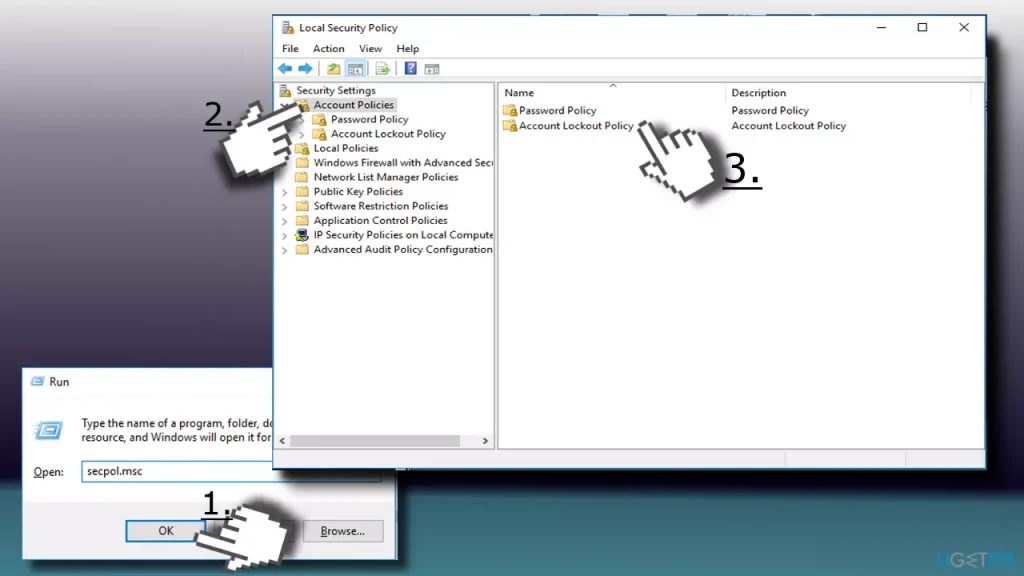
    • Press Windows key + R, type secpol.msc, and hit Enter.
    • When the Local Security Policy window opens, select Security Settings.
    • Open Account Policy and select Account Lockout Policy.
    • Double-click on the Account lockout threshold policy (on the right) to open Settings configuration window.
    • To disable account lockout, replace the existing value with 0 and click Apply to save the changes.
    • Then press OK and close the Local Security Policy window.
    • Restart the PC

    The information here was taken from this website:
    https://ugetfix.com/ask/how-to-fix-the-referenced-account-is-currently-locked-out-and-may-not-be-logged-on-to-error-on-windows-10/